
- Stories
- Business Stories
- Adding a menu to your All About Whitianga business listing page
Adding a menu to your All About Whitianga business listing page

If you are one of our hospitality customers serving food and drink you have the option to add a unique menu to your All About Whitianga business listing page. In this article learn how to load your unique menu to capture the attention of your online customers who are looking to reserve a table or order a takeaway over the phone.
Help us get the word out!
If you like this article, please share it!
Why have a menu on your listing page?
As a provider of food you already know that your customers 'eat with their eyes'. You already have great images of your dishes on your All About Whitianga listing page, so now take advantage of our great looking menu function to entice customers in the door or to pick up the phone to order.
Follow the easy steps below to add a menu to your All About Whitianga business listing page.
Log in to your business listing page. On the homepage of All About Whitianga you will see a login area at the top of the screen. Click the login button and enter your details. If you need help with logging in see our how to guide on logging in.

When logged in you will land on a page with details for your business listing, this is your Account dashboard.
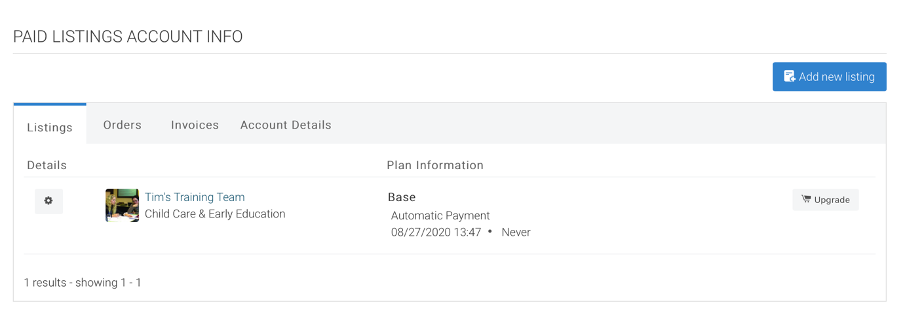
If you aren’t taken to this page, just click the link to the Account Dashboard at the top of your screen- this will take you here.

Cogwheel Functions. You will see a listings tab showing a cog wheel next to your lisitng.
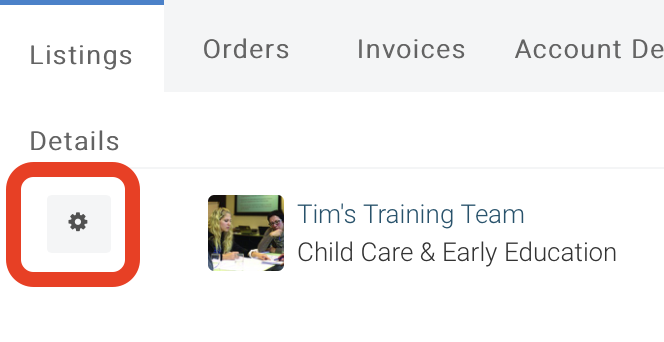
At any time if you click onto the cog wheel you will have the options to edit listing (for text and links), add media or edit media (for photographs or pdf uploads etc).

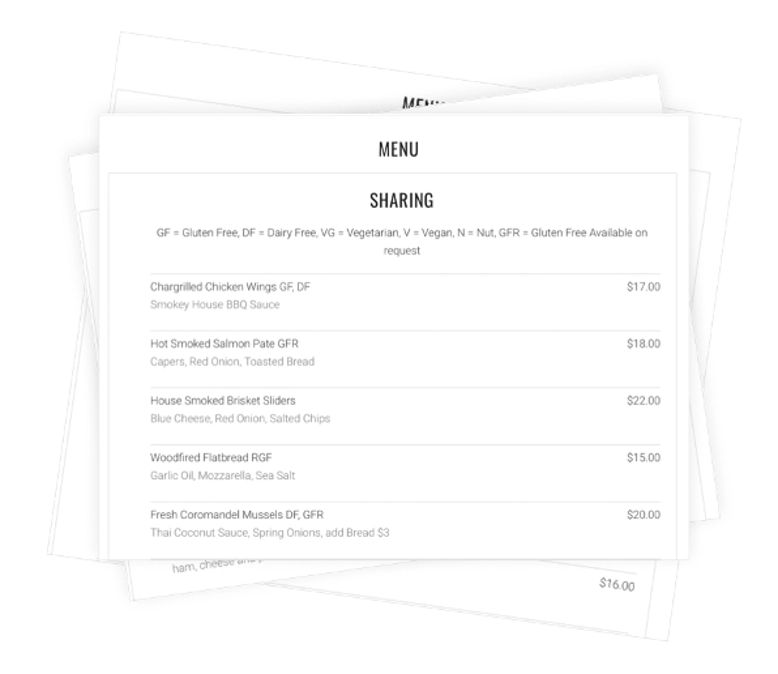
To add a menu to your listing click the edit listing option. Scroll down to the Menu section in the Restaurant Info area.
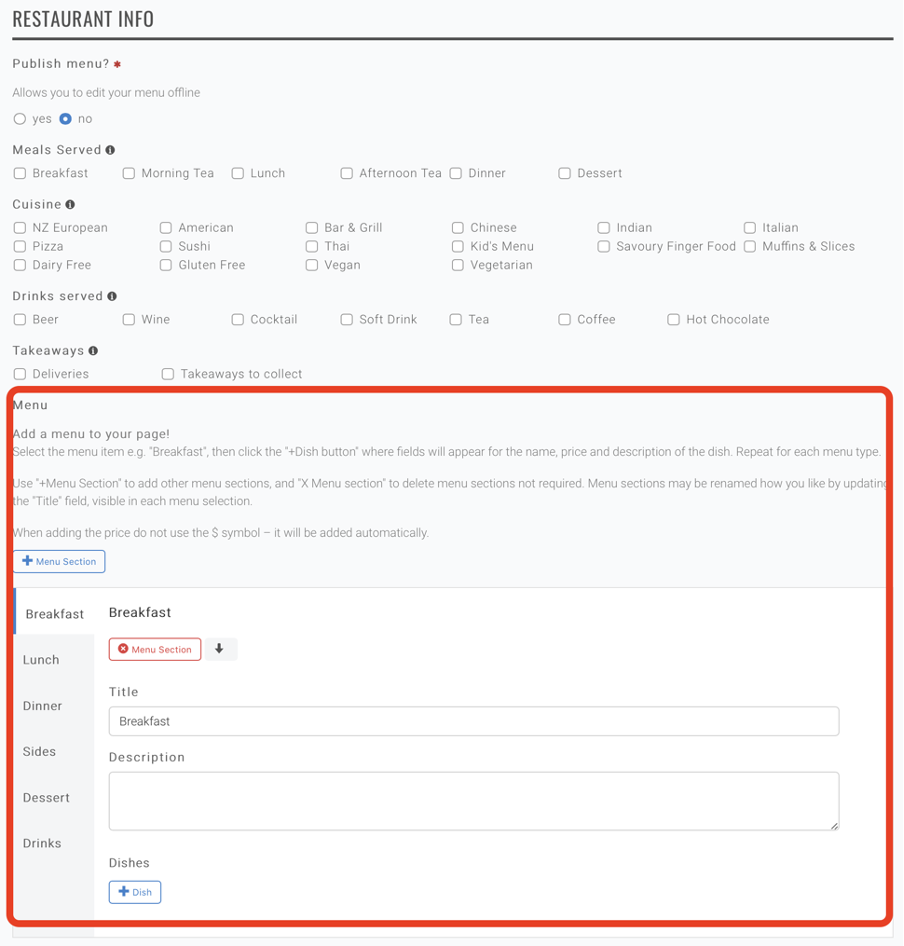
We have named six sections already, but these can be changed or deleted as you need.
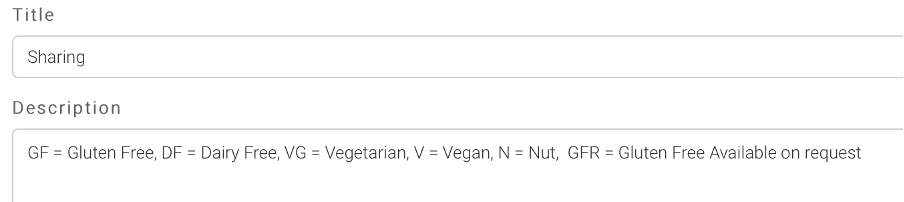
Title & description
Enter the title of your menu - ie Breakfast or Mains or Pizza etc.
In the description box enter any other info you need.

Enter dishes
Next enter your dishes, prices and description.

To add more dishes just click on the +Dish button.

If you want to rearrange the order of the dishes use the up and down arrows.

To delete a dish click the red X.

To change or edit other sections, just click on the tab on the left side bar.
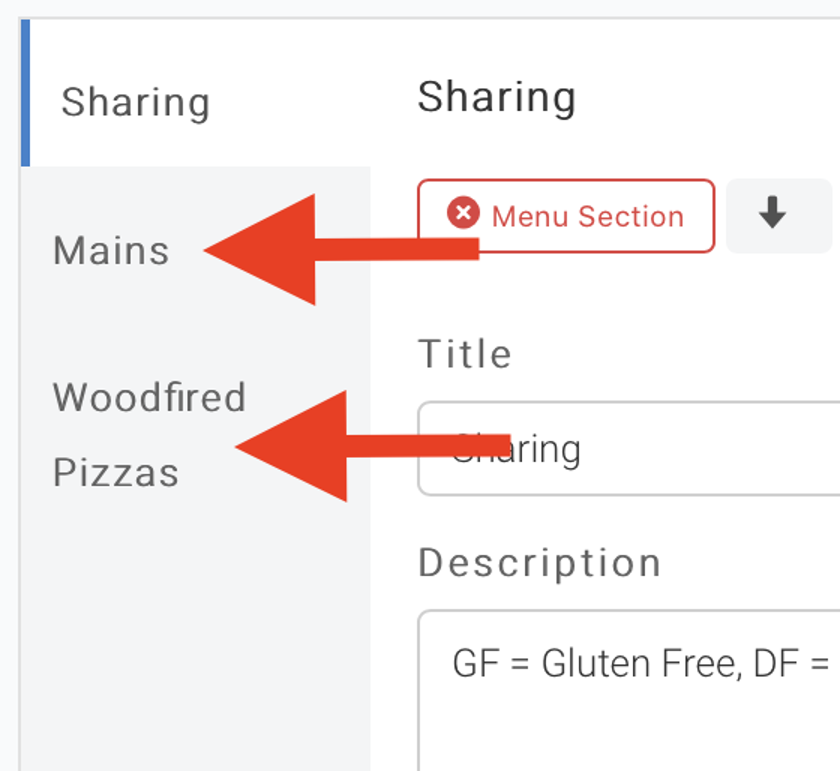
Adding Menu Sections
To add more sections click on the + menu section button.

Top tip: There’s no need to enter $ symbols with your prices, this is automatic.
Once you are happy, select the ‘submit’ button.

Then check your listing by clicking the ‘Go to listing’ button.

Top Tip: Make sure you save (submit) regularly, the page will 'time out' after approximately 90 mins.

Photos
Read More
Related Links
All About Whitianga AdvertisingMore Business Stories

Hauraki Coromandel Business Awards Finalists Announced

Entries now open for the Hauraki Coromandel businesses awards


Celebrating Three Years of Success: Major Milestone in Connecting Businesses and Jobseekers

Nominations now open for the Hauraki Coromandel businesses awards

Stay Updated with Your Favourite Information Using the All About Whitianga Follow Button

Could a local Coromandel Peninsula bakery win a national award?

NZI Rural Women NZ Business Awards 2024 Entries Open


Siddharth dishing up success in Thames-Coromandel District

Could a Coromandel Peninsula 'sneaky' sausage roll be a winner?
-
{{#owner}}
-
{{#url}}
{{#avatarSrc}}
{{name}} {{/url}} {{^url}} {{#avatar}} {{& avatar}} {{/avatar}} {{name}} {{/url}} - {{/owner}} {{#created}}
- {{created}} {{/created}}